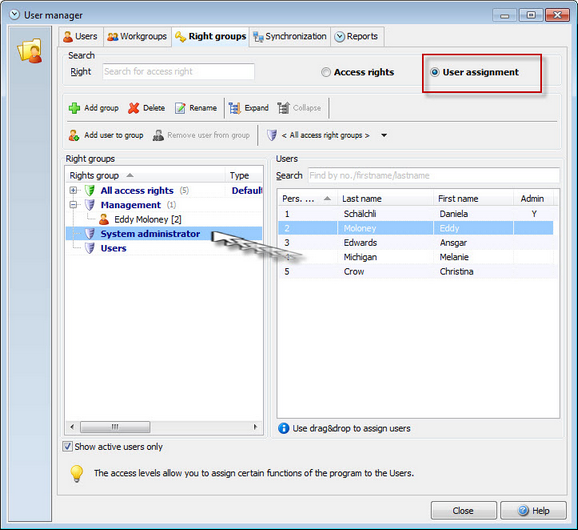
Create new access right group |
  
|
Create new access right group |
|
In Xpert-Timer you have the option to set individual access levels for every user. You can grant access to certain modules and the rights to read, edit or delete them. Go ahead and create a new user access level and grant the appropriate access rights. Afterwards you assign every user to a group.
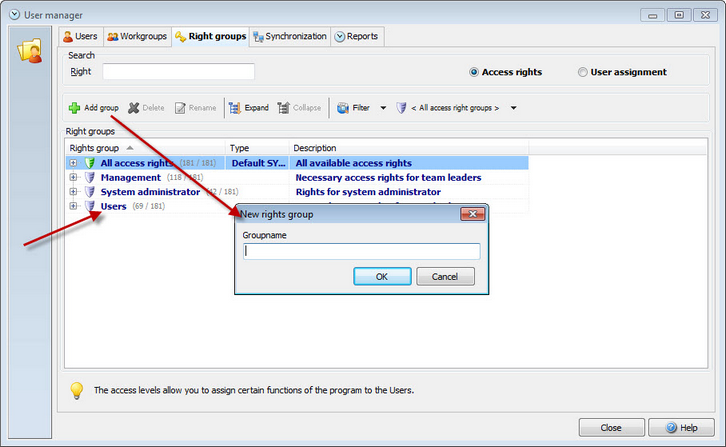
Click on "Add user group" in order to create a new group. Then check the box of the access right you want to add to the group.
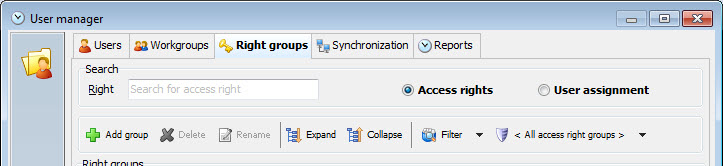
In order to keep a better overview of all the access levels, you can filter by access group, category or not assigned access rights.
Every single access right belongs to a category. If you want to assign all rights of one category, it's enough to check the box of the category. All sub access rights will be added automatically.
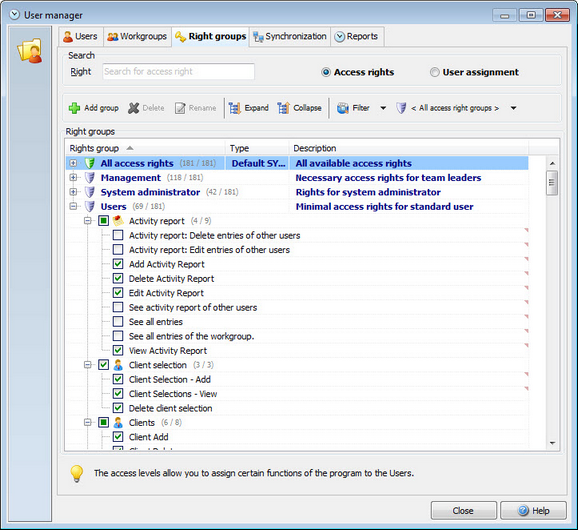
Please note, that you cannot change any settings in the "All access rights" group. This group always owns all access rights. Also those, that get added on an update of Xpert-Timer.
So the best way is to create your own Access right group. Take your time to read through all the access rights.
In order to assign the group to your employees, change the radio button to "User assignment". A new area in the dialog will open and you can add users by drag&drop to the access group.